
How to Restore Vita Mahjong Progress
Before reinstalling Vita Mahjong or replacing a phone, check whether Save your progress is connected to an account. A game that was played only on the device may not have a recoverable online save. Keep the old installation until the level and badges are confirmed on the new one.
Check how your progress is saved
Local play can store levels, badges and settings on the phone without linking a game account. That makes starting easy, but uninstalling or losing the device can remove the only copy of progress. A store account on the phone is not proof that the game has connected its save.
- Open the gear/settings control while the original installation still works.
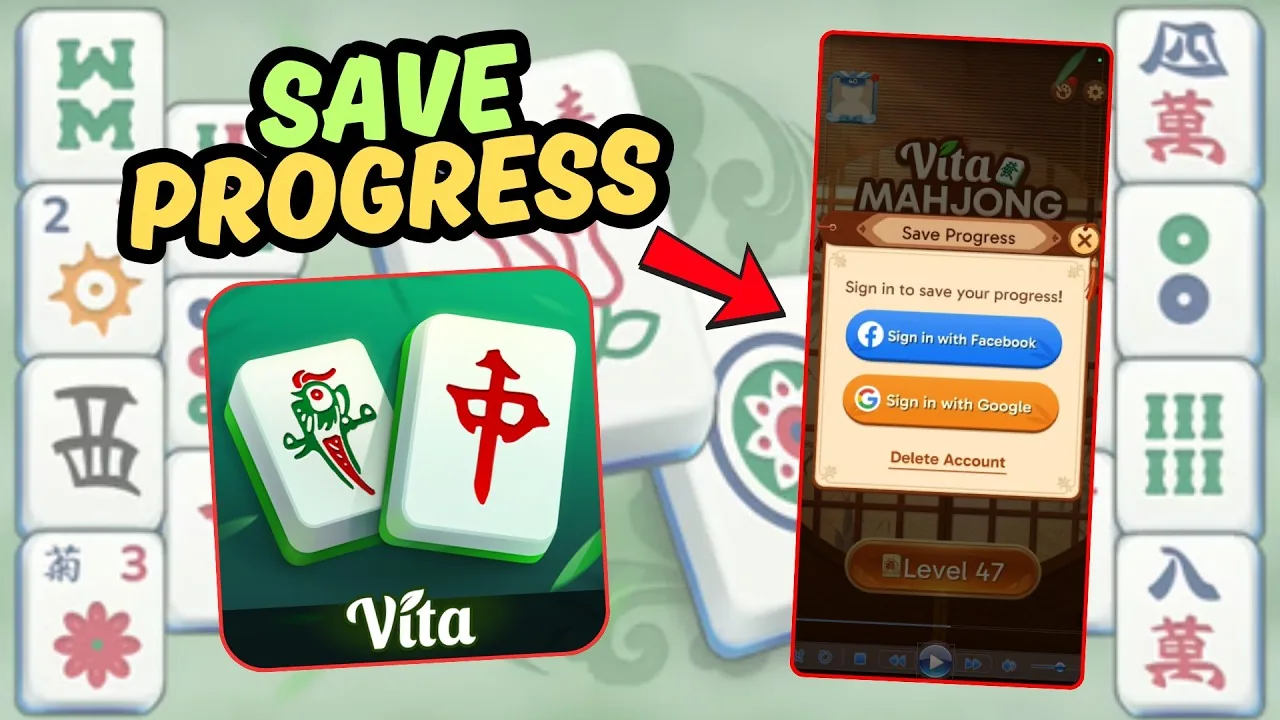
- Look for Save your progress.
- Use a sign-in method actually offered by that version. The documented English version offered Google and Facebook; this is not a claim that every current platform shows both.
- Wait for the connection status and record which account and method were used.
Do this before a transfer, not after erasing the phone. A connection status is useful evidence, but verify the restored level on the destination before treating the move as complete.
Move to a new phone carefully
Use a stable connection on both devices. Do not start by deleting the original game, and do not assume a phone backup or a different sign-in button will find the same save.
| Step | Check |
|---|---|
| Old phone | Open Save your progress and confirm the connected account. Record the level, badges and any player ID shown. |
| New phone | Install the official app from its store. |
| Game sign-in | Choose the same supported method and exact account used on the old phone. |
| Verification | Compare the level and badges. If they differ, stop before overwriting or deleting anything and contact support. |
If signing in does not restore the save
First compare the account itself, not just the account provider. Two Google accounts are different identities. Switching from Google to Facebook does not automatically connect the same save. Check the connection and whether an app update is available.
There is no verified universal “choose cloud save” dialog for every version. Read any conflict message carefully, and do not select a new low-level save over an older one just to dismiss the prompt. If the intended progress does not appear, support needs the sign-in method, approximate last successful play date and device details.
| Check | Why it matters |
|---|---|
| Same account | Progress is not identified by the phone model or phone number alone. |
| Connection | Account sign-in and synchronization need access to the service. |
| App version | A current supported build may resolve an older sign-in problem. |
| Same supported method | A different provider is not automatically an alternative login to the same save. |
Offline play is separate from synchronization
Ordinary levels support offline play, but transferring or synchronizing an account requires a connection. A board played offline should not be assumed to have reached another device immediately. See offline limits and travel preparation.
A missing icon does not mean the game is gone
Search the device before reinstalling. A home-screen shortcut can disappear while the app and its local data remain installed.
| Device | Where to look |
|---|---|
| Android | The app drawer or device app search, then the installed-app list in Settings or Google Play. |
| iPhone | App Library and device search, then the App Store account’s app/download history. |
| Store page shows Open | The app is installed; open it before attempting any reinstall. |
| Store page offers download | The app may be absent or offloaded; a download does not guarantee its former local progress is recoverable. |
Uninstalling and deleting an account are different
Uninstalling removes the app and can erase its local data. Deleting an account requests removal of server-side account information and may be irreversible. Neither action should be used as a routine first step for a missing save.
If you want to stop using the game, use the device’s normal uninstall control. If you also want account data deleted, inspect the app’s account/privacy controls or contact Vita Studio through Feedback. Do not assume that never making a purchase means no server data exists: sign-in and online activity are separate from payment.
Read the deletion confirmation and keep any required records before confirming. A new registration with the same email is not a promise that deleted progress will return. Uninstalling or deleting an account also does not by itself cancel a store subscription; use the subscription instructions.
Restore purchases through the correct store
Check the store account that originally paid and its purchase history. If the game offers Restore Purchases, use that control. A non-consumable ad-removal purchase and a currently active subscription are different products; consumable rewards may not be restored like an entitlement.
Do not buy the same offer again simply because it has not appeared. Keep the receipt and contact support if the entitlement is missing. A purchase in Google Play, Apple or another store is not automatically transferable across stores. See ads and paid offers for the distinction.
Contact the mobile app’s support
Open Feedback in the app, or use Vita Studio’s published support address, support@vitastudio.ai. Include Android or iPhone/iPad, the device model, app version, sign-in method, approximate level and last successful play date. Include a player ID or purchase receipt if relevant, but never a password or sign-in code.
Some players have only a local guest save, not a connected game account. Support may be able to explain the options, but recovery is not guaranteed. Do not describe a guest save as an account you know exists on the server.
Our site and its Mah browser game are independent. Vita Studio support handles the mobile app, not this site’s browser storage or layouts.
Related help
- Download: official listings and installation.
- Offline play: local boards versus online account features.
- Ads and purchases: entitlements, subscriptions and receipts.
- App not working: safe checks before deleting data.
Frequently asked questions
How does Vita Mahjong save progress?
Local play can save on the device. To use an account save, inspect Save your progress and the supported sign-in method. Do not assume the store login alone connects the game.
What if the icon disappeared?
Search the app drawer or App Library and the installed-app list. If the store shows Open, launch it instead of reinstalling.
Can I recover progress without a connected account?
If the only copy was local and has been erased, recovery may not be possible. Contact support with the available details, but do not expect a guaranteed restore.
How do I delete the app and its data?
Uninstall through the device. Account/server-data deletion is a separate action in the app or through support, and subscription cancellation is separate again.
Will purchases return after reinstalling?
Use the original store account and any Restore Purchases control. Check the product type and subscription status; cross-store transfer and consumable restoration are not guaranteed.
Who can help if these checks fail?
Use Feedback in the mobile app or support@vitastudio.ai. Provide device, version and account-method details without passwords or login codes.